Mini LED for Gaming Monitor vs OLED: 10 Models Compared
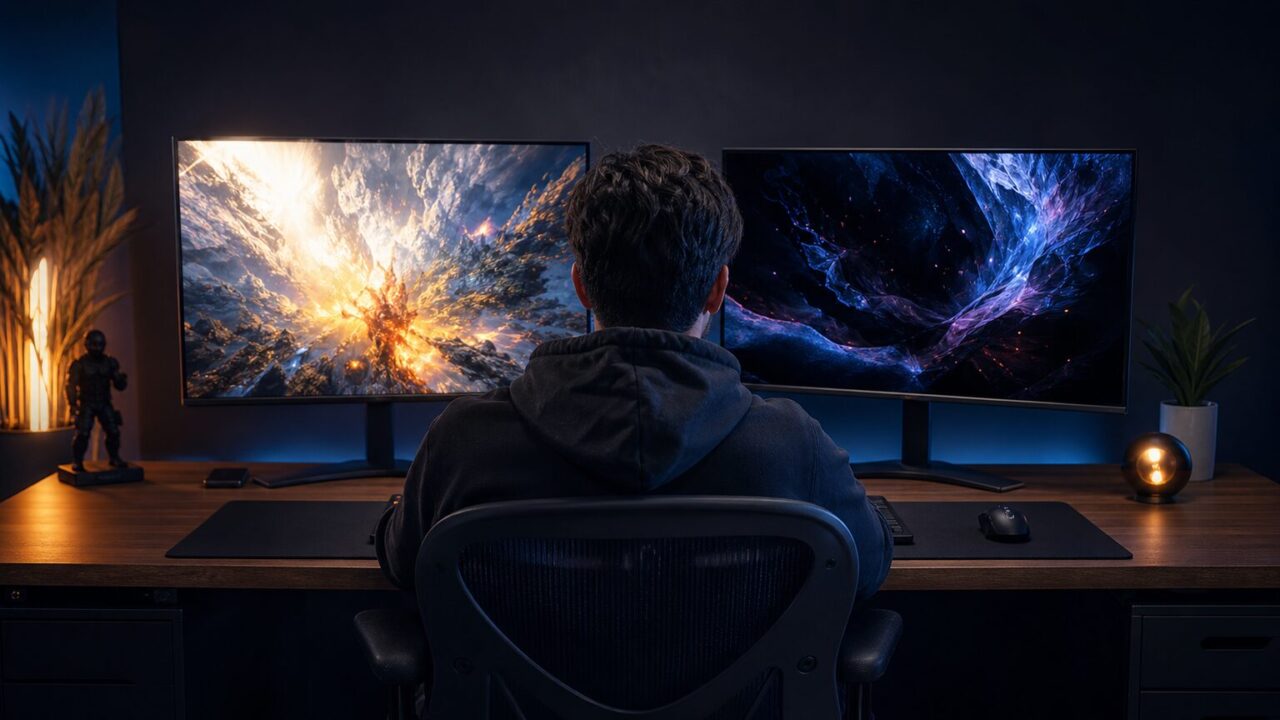
Premium gaming monitor decision guide
The practical answer to Mini LED vs OLED gaming monitors is straightforward: choose OLED when deep blacks, pixel-level contrast, and clean motion matter most; choose Mini LED for a bright room, sustained high-brightness content, or long sessions with static desktop elements. The panel label is only the first decision. Resolution, refresh rate, local-dimming behavior, adaptive sync, ports, HDR certification, warranty terms, and OLED-care features still need to match the exact model and the hardware you plan to use.
Quick picksUse these three as fast starting points, then check the full comparison before deciding.
Fast 1440p OLEDA compact QHD OLED for buyers prioritizing 240 Hz, adaptive sync, and dark-room contrast. View current Amazon buying options
Value-focused Mini LEDA QHD Mini LED route for bright-room HDR gaming without the OLED-specific burn-in concern. View current Amazon buying options
Feature-rich 4K OLEDA 4K QD-OLED option with 240 Hz, USB-C, HDMI 2.1, and a KVM for a multi-device desk. View current Amazon buying options
Before comparing models, decide where you play, what remains on screen between games, and which source devices you intend to connect. Those answers usually matter more than the panel label alone.
- How to Choose Between Mini LED and OLED for Gaming
- Comparison: 10 Mini LED and OLED Gaming Monitors
- LG UltraGear 27GS95QE-B 27-inch QHD OLED Gaming Monitor
- AOC Q27G3XMN 27-inch QHD Mini LED Gaming Monitor
- ASUS ROG Swift OLED PG32UCDM 32-inch 4K Gaming Monitor
- Samsung Odyssey OLED G6 G60SD 27-inch QHD Gaming Monitor
- MSI MPG 271QRX QD-OLED 27-inch QHD Gaming Monitor
- Samsung Odyssey Neo G8 32-inch 4K Mini LED Gaming Monitor
- LG UltraGear 34GS95QE-B 34-inch Ultrawide OLED Gaming Monitor
- LG UltraGear 39GS95QE-B 39-inch Ultrawide OLED Gaming Monitor
- ASUS ROG Strix XG27ACDNG 26.5-inch QHD QD-OLED Gaming Monitor
- MSI MAG 341CQP 34-inch QD-OLED Ultrawide Gaming Monitor
- Final Decision: Mini LED vs OLED for Gaming Monitors
How to Choose Between Mini LED and OLED for Gaming
1. Black levels, blooming, and dark-room play
OLED controls light at the pixel level, making it the natural fit for buyers who prioritize deep blacks and precise contrast in dark games. Mini LED uses a backlight divided into local-dimming zones. That can produce strong contrast, but bright objects beside dark areas may reveal halos or blooming.
Blooming matters most to dark-room players who notice subtitles, HUD elements, cursors, or small highlights against black backgrounds. It may matter less in a brighter room or in broadly illuminated scenes. Zone count can be informative, but the dimming algorithm still has to be judged at the model level.
2. HDR brightness and room lighting
Mini LED is generally the safer direction for bright-room gaming and sustained high-brightness content. OLED instead emphasizes deep blacks and per-pixel contrast. A peak-brightness figure alone does not describe full-screen behavior, black performance, or how aggressively a monitor changes brightness.
| Priority | Likely direction | What to verify |
|---|---|---|
| Dark-room contrast | OLED | HDR behavior and OLED-care settings |
| Bright-room visibility | Mini LED | HDR tier and local-dimming behavior |
| Gaming plus static office work | Mini LED for lower ownership concern | Ports, text use, and dimming behavior |
3. Motion clarity, response, and competitive gaming
OLED’s rapid pixel transitions can make motion look especially clean, while refresh rate determines how frequently the display can present a new frame. For competitive gaming, prioritize the complete chain: a refresh rate your PC can use, a suitable resolution, adaptive sync, and the required connection. A 360 Hz QHD OLED may suit a performance-focused PC better than a 4K model whose resolution demands more rendering work.
What matters: supported refresh rate, resolution, adaptive-sync compatibility, and the relevant port. What may not matter: paying for 360 Hz when a console or PC cannot produce a matching output.
4. Burn-in risk, desktop use, and ownership habits
OLED buyers should account for persistent taskbars, logos, window borders, and other static elements. Supplied manufacturer guidance identifies protections such as screen dimming, taskbar detection, static-logo adjustment, boundary detection, and global dimming on supported ROG OLED monitors. Available features vary, so confirm the exact monitor’s care tools and warranty terms.
Mini LED avoids the OLED-specific burn-in concern, although its trade-off is possible blooming from the local-dimming system. For repeated long workdays with static software followed by gaming, that exchange may be worthwhile.
5. PC, console, VRR, ports, and HDR setup
Do not assume that every Mini LED or OLED monitor offers the same console features. Check HDMI capability, supported resolution and refresh rate over that input, VRR support, and whether the screen’s aspect ratio suits the source. Ultrawide monitors are primarily PC-oriented because consoles generally do not output native 21:9 images.
- For a PC, match DisplayPort or HDMI capabilities to the desired resolution and refresh rate.
- For a console, verify HDMI support and console VRR at the model level.
- AMD states that compatible FreeSync displays can work over HDMI without requiring HDMI 2.1; Premium and Premium Pro add further tier requirements, while Premium Pro includes FreeSync HDR.
- After connecting an HDR monitor to Windows 11, turn on HDR under Settings, System, Display, and HDR, then use the Windows HDR Calibration app’s three test patterns for dark detail, bright detail, and maximum brightness.
With those priorities established, the following comparison keeps the panel trade-off, device fit, and pre-purchase checks visible for every recommendation.
Comparison: 10 Mini LED and OLED Gaming Monitors
| Rank | Monitor | Panel direction | Best distinction | Amazon |
|---|---|---|---|---|
| 1 | LG 27GS95QE-B | OLED | 27-inch QHD at 240 Hz | View current options |
| 2 | AOC Q27G3XMN | Mini LED | Value-focused QHD HDR | View current options |
| 3 | ASUS PG32UCDM | QD-OLED | 4K, 240 Hz, USB-C, and KVM | View current options |
| 4 | Samsung Odyssey OLED G6 | QD-OLED | QHD at 360 Hz | View current options |
| 5 | MSI MPG 271QRX | QD-OLED | 360 Hz with USB-C and KVM | View current options |
| 6 | Samsung Odyssey Neo G8 | Mini LED | Curved 4K at 240 Hz | View current options |
| 7 | LG 34GS95QE-B | OLED | 34-inch ultrawide at 240 Hz | View current options |
| 8 | LG 39GS95QE-B | OLED | Large 39-inch ultrawide | View current options |
| 9 | ASUS XG27ACDNG | QD-OLED | QHD at 360 Hz | View current options |
| 10 | MSI MAG 341CQP | QD-OLED | 34-inch ultrawide at 175 Hz | View current options |
Pick 1 · Fast 1440p OLED
LG UltraGear 27GS95QE-B 27-inch QHD OLED Gaming Monitor
Best for: Fast 1440p PC gaming and dark-room play.
Its 27-inch OLED format balances a desk-friendly size with 2560 × 1440 resolution and a 240 Hz refresh rate. LG also lists NVIDIA G-SYNC Compatible and AMD FreeSync Premium Pro support, which makes it a focused choice for adaptive-sync PC gaming.
Advantages
- QHD resolution with a 240 Hz ceiling
- OLED black levels and pixel-level contrast
- Both listed adaptive-sync options
Limitations
- OLED-care habits remain relevant
- Not the sustained-brightness choice for every room
Who should skip it: Buyers prioritizing 4K detail or frequent static office use may prefer another format.
Check current LG 27GS95QE-B price and availability on Amazon
Pick 2 · Value-focused Mini LED
AOC Q27G3XMN 27-inch QHD Mini LED Gaming Monitor
Best for: Value-focused HDR gaming and bright-room use.
The AOC combines a 27-inch QHD Mini LED panel with local dimming and up to 180 Hz over DisplayPort. HDMI, DisplayPort, and adaptive-sync support give buyers a comparatively accessible route to Mini LED HDR.
Advantages
- Mini LED local dimming
- QHD at up to 180 Hz over DisplayPort
- No OLED-specific burn-in concern
Limitations
- Possible blooming in difficult dark scenes
- Refresh capability depends on the input
Who should skip it: Dark-room players who are especially sensitive to halos may prefer OLED.
Pick 3 · Feature-rich 4K OLED
ASUS ROG Swift OLED PG32UCDM 32-inch 4K Gaming Monitor
Best for: Feature-rich 4K OLED gaming and multi-device desks.
This 31.5-inch 4K QD-OLED runs at 240 Hz and combines HDMI 2.1, DisplayPort, USB-C, and a KVM switch. ASUS OLED Care features add relevant protection tools for a screen shared between gaming and desktop applications.
Advantages
- 4K QD-OLED at 240 Hz
- HDMI 2.1 and USB-C
- KVM support for a multi-device desk
Limitations
- Its feature set may be more than a modest system can use
- Static-content care remains important
Who should skip it: Buyers whose PC cannot benefit from its 4K/240 Hz ceiling may be overbuying.
Pick 4 · High-refresh competitive OLED
Samsung Odyssey OLED G6 G60SD 27-inch QHD Gaming Monitor
Best for: High-refresh competitive OLED gaming.
Samsung’s 27-inch OLED uses 2560 × 1440 resolution and a maximum 360 Hz refresh rate. FreeSync Premium Pro and G-SYNC compatibility are listed, aligning the model with high-frame-rate PC play.
Advantages
- 360 Hz ceiling
- OLED contrast
- Listed FreeSync and G-SYNC support
Limitations
- Not a 4K display
- OLED ownership practices still apply
Who should skip it: Console-first cinematic players may get more value from a 4K model.
Pick 5 · Competitive OLED with desk conveniences
MSI MPG 271QRX QD-OLED 27-inch QHD Gaming Monitor
Best for: Competitive PC gaming with USB-C and KVM conveniences.
The 26.5-inch QD-OLED panel provides 2560 × 1440 resolution at up to 360 Hz. HDMI 2.1, USB-C, a KVM, and MSI OLED Care 2.0 make it relevant to a performance desk serving multiple devices.
Advantages
- QHD at 360 Hz
- HDMI 2.1 and USB-C
- KVM and OLED Care 2.0
Limitations
- 360 Hz is primarily a PC benefit
- Static desktop use requires care
Who should skip it: Buyers who only need console refresh rates may not benefit from its central performance feature.
Pick 6 · Bright-room 4K Mini LED
Samsung Odyssey Neo G8 32-inch 4K Mini LED Gaming Monitor
Best for: Bright-room 4K gaming at up to 240 Hz.
This 32-inch monitor combines a 4K panel, 240 Hz maximum refresh rate, Quantum Mini LED, and FreeSync Premium Pro. It avoids the OLED-specific concern associated with persistent desktop elements and favors buyers seeking strong HDR brightness.
Advantages
- 4K at up to 240 Hz
- Mini LED brightness direction
- Better suited to recurring static content
Limitations
- Divisive 1000R curve
- Possible local-dimming bloom
Who should skip it: Buyers wanting a flat screen or exact pixel-level black control should look elsewhere.
Check current Odyssey Neo G8 price and availability on Amazon
Pick 7 · Immersive 34-inch OLED
LG UltraGear 34GS95QE-B 34-inch Ultrawide OLED Gaming Monitor
Best for: Immersive ultrawide PC gaming.
The curved 3440 × 1440 OLED panel provides a wider PC field of view and a 240 Hz maximum refresh rate. LG lists both G-SYNC Compatible and FreeSync Premium Pro support.
Advantages
- 3440 × 1440 ultrawide format
- 240 Hz OLED presentation
- Two listed adaptive-sync options
Limitations
- Primarily a PC-oriented aspect ratio
- The strong curve reduces layout versatility
Who should skip it: Console-first buyers or users preferring a flat productivity screen should choose another format.
Pick 8 · Large-format ultrawide OLED
LG UltraGear 39GS95QE-B 39-inch Ultrawide OLED Gaming Monitor
Best for: Large-format ultrawide immersion at desk distance.
The 39-inch curved OLED uses 3440 × 1440 resolution at up to 240 Hz, with G-SYNC Compatible and FreeSync Premium Pro support. It enlarges the image without moving to a super-ultrawide aspect ratio.
Advantages
- Large 39-inch image
- 3440 × 1440 at up to 240 Hz
- OLED contrast
Limitations
- Lower pixel density than a 34-inch equivalent
- Not an ideal console format
Who should skip it: Buyers who prioritize compact size or sharper desktop density may prefer the 34-inch option.
Check current LG 39GS95QE-B price and availability on Amazon
Pick 9 · Competitive QHD QD-OLED
ASUS ROG Strix XG27ACDNG 26.5-inch QHD QD-OLED Gaming Monitor
Best for: Competitive PC gaming with OLED contrast at QHD resolution.
The verified decision factors are a 26.5-inch QD-OLED panel, 2560 × 1440 resolution, a 360 Hz refresh rate, and G-SYNC Compatible support. That combination prioritizes motion presentation and pixel-level contrast.
Advantages
- QHD QD-OLED panel
- 360 Hz refresh rate
- G-SYNC Compatible support
Limitations
- Not a 4K display
- OLED-care precautions remain relevant
Who should skip it: Buyers prioritizing 4K console detail over very high PC refresh should consider a different model.
Pick 10 · Balanced 34-inch QD-OLED ultrawide
MSI MAG 341CQP 34-inch QD-OLED Ultrawide Gaming Monitor
Best for: Immersive 34-inch ultrawide gaming with a 175 Hz ceiling.
The Amazon listing identifies a 34-inch curved QD-OLED monitor with 3440 × 1440 resolution, a 175 Hz refresh rate, Adaptive Sync, HDMI, DisplayPort, and USB Type-C. It offers an ultrawide route for buyers who value contrast and a broader PC gaming view.
Advantages
- 34-inch 3440 × 1440 ultrawide format
- QD-OLED contrast
- USB Type-C is listed
Limitations
- Ultrawide format is poorly matched to consoles
- Model-level details should be checked on the listing
Who should skip it: Console-first buyers or anyone unwilling to verify the exact listing details should choose a clearer fit.
Final Decision: Mini LED vs OLED for Gaming Monitors
Choose OLED when dark-room black levels, per-pixel contrast, and clean motion lead your priorities. Choose Mini LED when the monitor will operate in a bright room, show sustained bright content, or spend long periods displaying static desktop applications. Then narrow the decision by resolution, refresh rate, connection, VRR support, aspect ratio, and care requirements.
- For compact 1440p OLED gaming: Check the current LG 27GS95QE-B Amazon offer.
- For value-focused Mini LED HDR: Compare current AOC Q27G3XMN buying options.
- For 4K OLED and a multi-device desk: View the current ASUS PG32UCDM Amazon listing.
Is OLED or Mini LED better for competitive gaming?
OLED is compelling when clean motion and pixel-level contrast are priorities, especially in a high-refresh QHD model. Mini LED can still suit competitive play, but compare refresh rate, adaptive sync, resolution, and connection support rather than choosing by panel type alone.
How serious is OLED burn-in risk for mixed desktop use?
It is a purchasing factor when persistent taskbars, logos, or application borders remain visible for long sessions. Supported OLED-care functions can reduce risk, but available protections and warranty terms vary by model. Mini LED is the simpler choice when static productivity content dominates.
Is Mini LED blooming noticeable in games?
It can be noticeable when a small bright object appears against a dark background, particularly in a dark room. Visibility depends on the monitor’s local-dimming implementation and the scene. OLED avoids backlight blooming because it controls light at the pixel level.
How should HDR be configured in Windows 11?
Connect an HDR-capable monitor, enable HDR under Settings, System, Display, and HDR, and use the Windows HDR Calibration app. Microsoft describes three HGIG-recommended patterns for darkest visible detail, brightest visible detail, and maximum display brightness.
For most buyers, the lowest-risk decision comes from matching the display to daily use: OLED for contrast-led gaming in controlled lighting, Mini LED for brighter environments and recurring static work. Once that choice is clear, buy only the resolution and refresh capability your PC or console can actually use.